How to Use LoclHyr as a Customer: A Complete Step-by-Step Guide
Something at home always seems to break at the worst time — a faulty AC, a leaking tap, a wall that finally needs painting. And the first question is always the same: “Who do I even call?”
LoclHyr was built to solve exactly that problem. It’s a hyperlocal platform that connects you directly with verified, rated electricians, plumbers, carpenters, painters, and 19+ other local professionals — no more asking around or hoping for the best.
If you’re using LoclHyr for the first time, here’s a complete walkthrough of how it works.
Step 1: Create Your Account
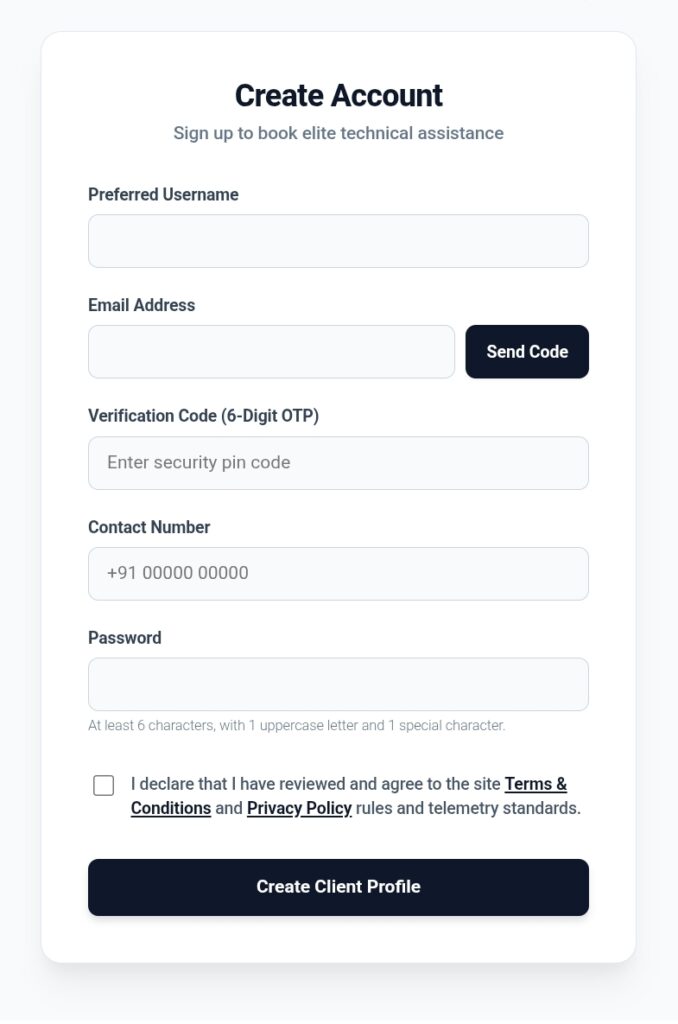
Start by heading to loclhyr.com/client-registration and creating a Customer account.
You’ll need:
- A username
- An email address (you’ll receive a 6-digit OTP code to verify it)
- A contact number
- A strong password (at least 6 characters, one uppercase letter, and one special character)
Once your email is verified, your account is created instantly and you’re taken straight to your Customer Dashboard.
Step 2: Find Workers Near You
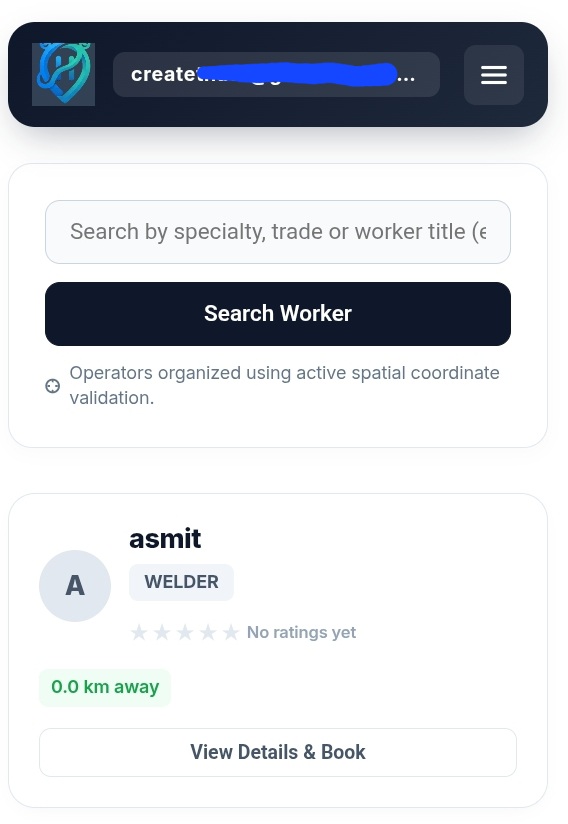
After logging in, head to the “Find Nearby Workers” tab. You can search two ways:
- Search by category — type in something like “Electrician,” “Plumber,” or “AC Expert”
- Allow location access — when your browser asks for location permission, tap “Allow.” LoclHyr will automatically sort nearby workers by distance, so you see the closest options first
Each worker card shows you:
- Their name and photo
- Their profession/specialty
- Their rating (⭐ stars) and number of reviews
- How far they are from you (if location is shared)
Step 3: Check the Worker’s Profile
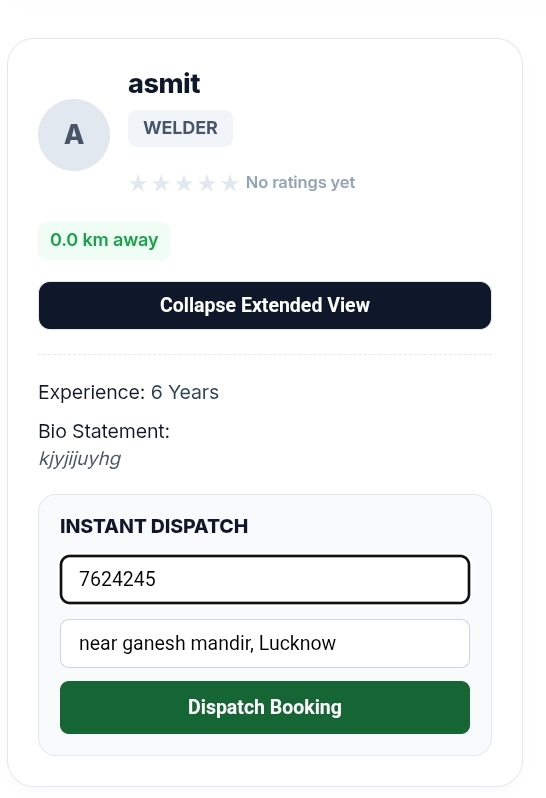
Tap “View Details & Book” on any worker card to see their full profile:
- Years of experience
- Their bio/description (specialties and background)
- Rating and reviews
Tip: Always check both the star rating and the number of reviews together. A 5.0 rating with just 1 review is usually less reliable than a 4.5 rating backed by 50+ reviews.
Step 4: Make a Booking
Once you’ve chosen a worker, the booking form will ask for:
- Your contact number (auto-filled if it’s already saved in your profile)
- The complete service address where the worker needs to come
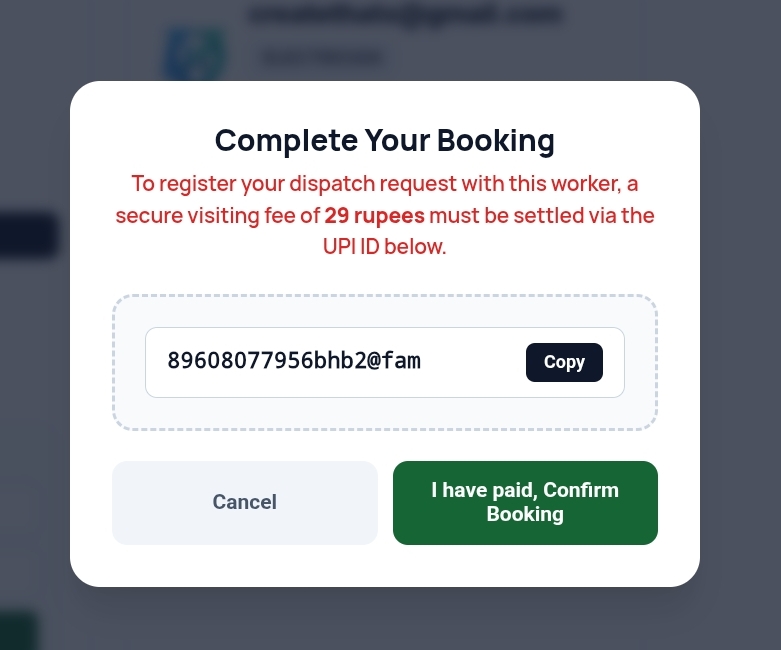
Tapping “Dispatch Booking” opens a payment window showing the worker’s visiting-fee QR code. This is a small, fixed visiting charge that you pay directly to the worker by scanning their QR — LoclHyr is not involved in this transaction; it’s strictly between you and the worker.
Once you’ve paid, tap “I have paid, Confirm Booking” and your request is sent to the worker.
Step 5: Chat With Your Worker
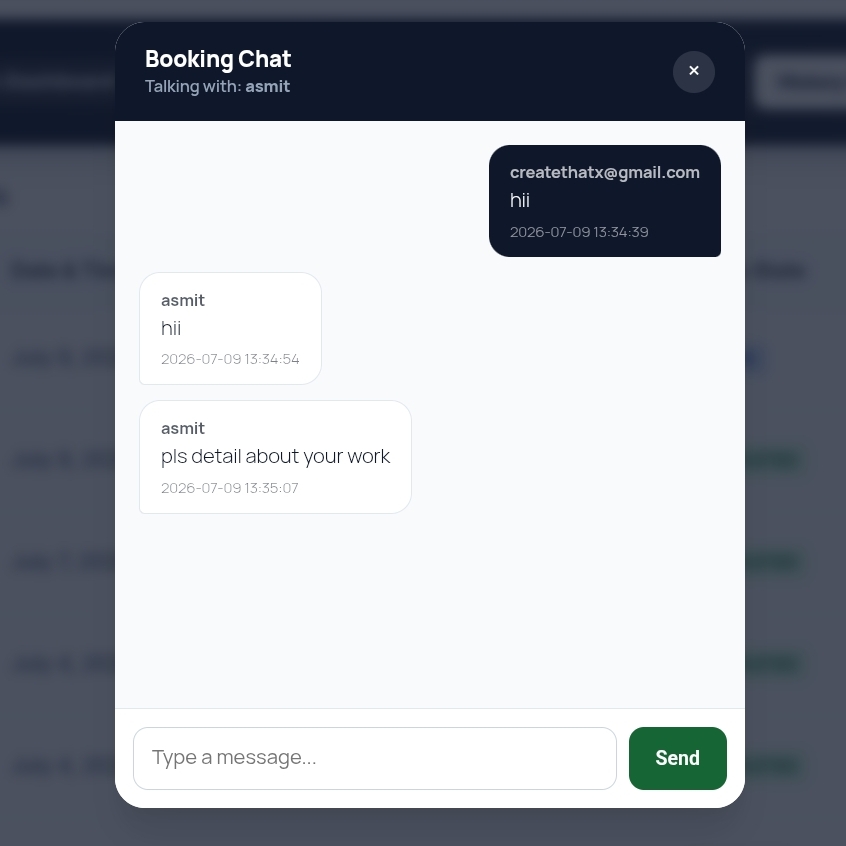
Once a booking is placed, go to your “History & Messages” tab. You’ll see that booking listed with a 💬 Message button next to it.
This opens an in-app chat where you can talk directly with the worker — share exact directions, confirm timing, or discuss any details. Your phone number is never shared publicly.
Step 6: Track Your Booking Status
Every booking shows a clear status:
| Status | What It Means |
|---|---|
| Pending | The worker hasn’t accepted yet |
| Active | The worker has accepted and is on the way / assigned |
| Completed | The job is done |
| Rejected | The worker declined this booking |
If a booking gets rejected, don’t worry — you can simply search for another available worker in the same category and book again.
Step 7: Leave a Rating After the Job
As soon as a worker marks a booking “Completed,” a “Rate Worker” button appears in your History tab.
- Choose 1 to 5 stars
- Optionally, leave a short written review
This rating becomes public and helps other customers choose the right worker. Ratings can only be left on genuine, completed bookings — so every review on LoclHyr is real.
A Few Extra Tips
- Keep your profile complete — save your address and contact number in Account Settings so you don’t have to retype them on every booking
- Always check ratings before booking — more reviews generally means more reliability
- Use the chat feature — clear up any confusion right after booking by messaging the worker
- Check your History tab regularly — to see if a worker has accepted, or if a status has changed
Frequently Asked Questions
Q: Does LoclHyr process payments? No. The visiting fee goes directly from you to the worker via their QR code. LoclHyr is not involved in that transaction.
Q: What if a worker doesn’t accept my booking? You can search for another available worker in the same category at any time and book with them instead.
Q: Does the worker see my phone number? Once a booking is confirmed, the worker receives your contact number so they can coordinate with you — but everything else can be handled through the in-app chat.
Q: Is leaving a rating mandatory? No, but it helps build trust on the platform and genuinely helps other customers make better choices.
Try It Today
The next time something at home needs fixing, give LoclHyr a try — verified workers, real ratings, and a booking process that takes minutes, not phone calls.
👉 Register now at loclhyr.com.